Pulsar brings haptics into Figma: the plugin lets you bind a preset to any design element, hear it as you edit, feel it on a real phone, and iterate on the spot.
*The plugin works with a free Pulsar account and a plugin subscription. A free trial is available.
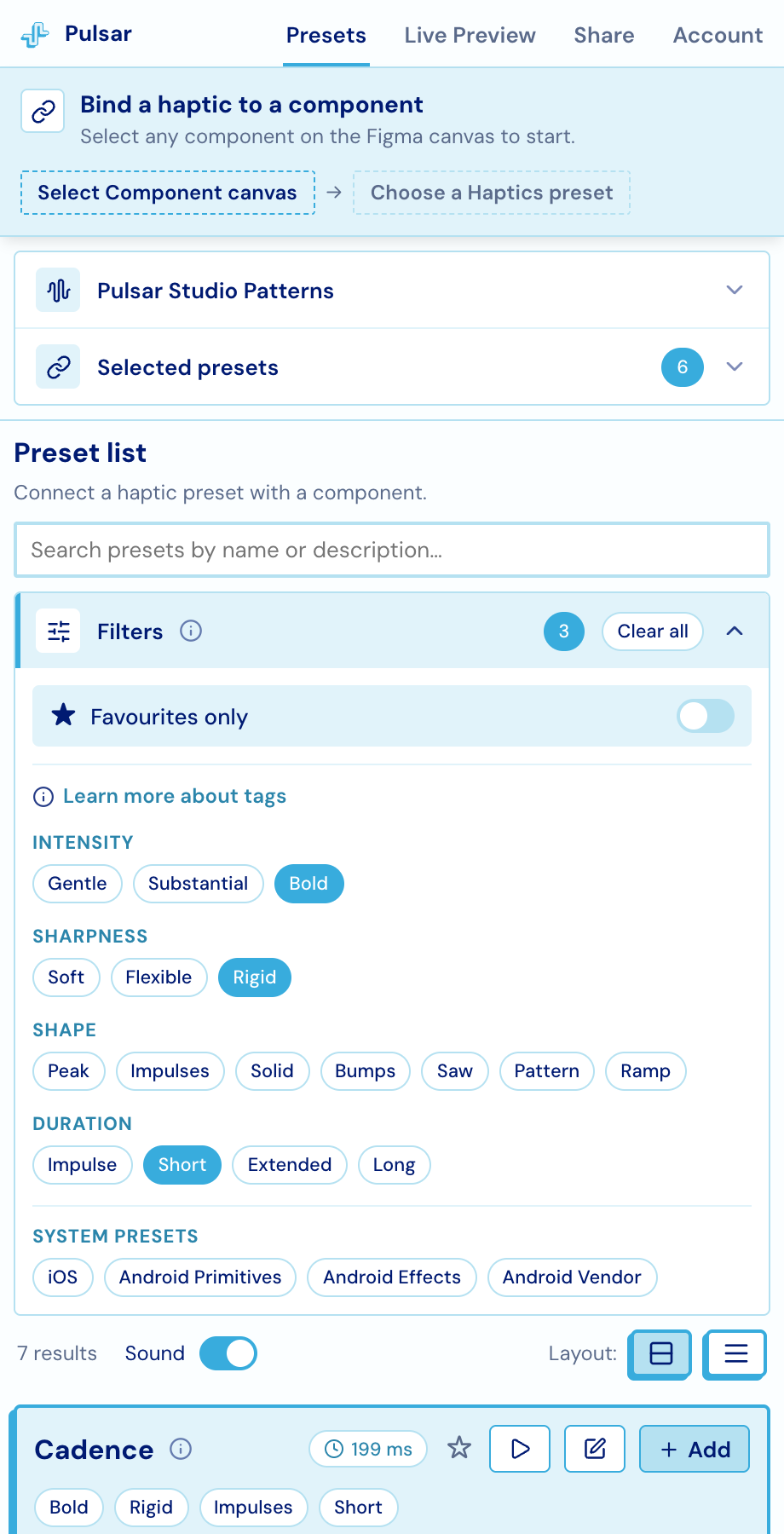


Find the right haptics by searching or filtering by name, tag, category, or platform.
Attach haptics directly to a selected layer, so everything stays in one place instead of getting lost in a comment or ticket.
Select a bound layer to play the pattern through your speakers and quickly try different options without leaving Figma.
Pair your phone with a QR code and use the free Pulsar app to feel the actual vibration and see how the pattern works in practice.
Send your team a link to try the prototype in the browser, without having to install the plugin or sign up.
Export pattern visualisations, raw JSON, and ready-to-use snippets for Swift, Android, Kotlin Multiplatform, React Native, Flutter, and web. Bindings are also mirrored into shared plugin data, so Dev Mode and design-to-code tooling can read them. Developers can also use Figma MCP with our skill to implement haptics.
A short run through the whole loop, from picking a haptic in Figma to feeling it on the phone next to you.
To get started with the Pulsar Figma plugin, you’ll need a free Pulsar account and a plugin subscription (there’s a 14-day free trial if you want to try it out first).
Everything works in the browser, but if you want to feel the haptics on a real device, please download the Pulsar app for iOS or Android — you can find the links below.