Debugging in VSCode
This guide walks you through setting up and using Cairo Debugger in Visual Studio Code - the primary supported environment.
Prerequisites
Before you start, make sure you have:
Also, complete the Scarb.toml configuration from the quick start before continuing.
Step 1 - Open your project in VSCode
Open the root folder of your Cairo project (the one containing Scarb.toml) with File → Open Folder.
Step 2 - Set breakpoints
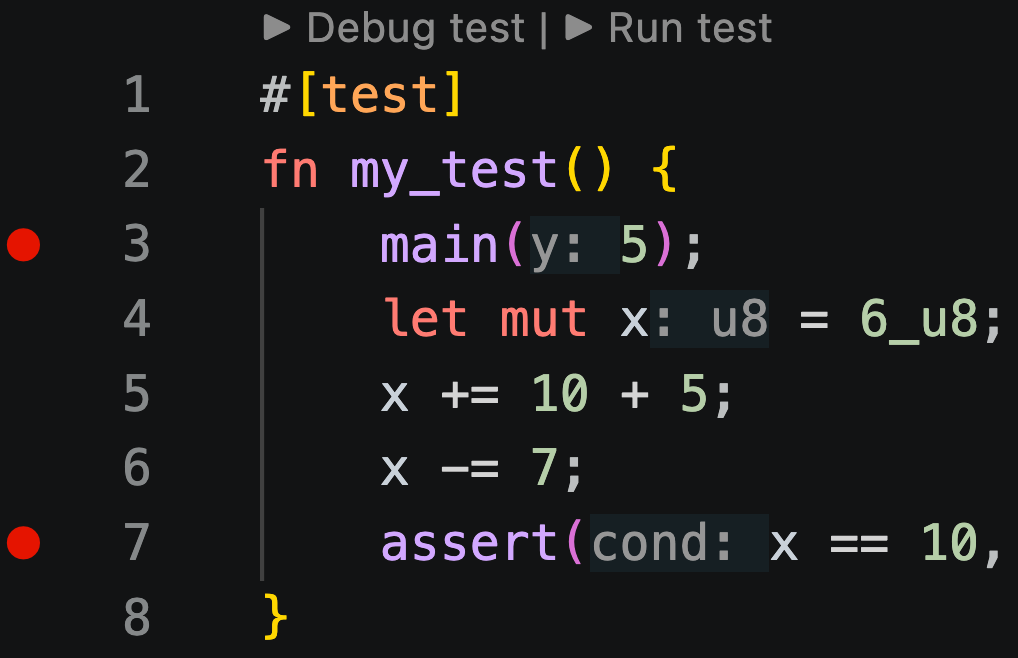
Click in the gutter (the space to the left of the line numbers) on any Cairo source line where you want execution to pause. A red dot confirms the breakpoint is set.
TIP
You can set multiple breakpoints before launching. The debugger will stop at each one in order.
Step 3 - Launch the debugger
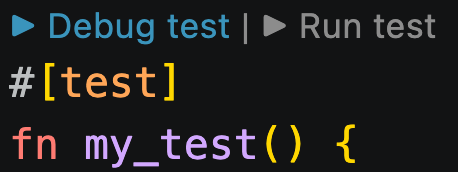
The Cairo Language Server - which is distributed with Scarb - adds a ▶ Debug Test code lens above every test function. Click it to start a debugging session.
Step 4 - Navigate the debugger
Once execution hits a breakpoint, use the standard VSCode debug toolbar:
| Action | Keyboard shortcut | Icon | Description |
|---|---|---|---|
| Continue | F5 |  | Resume until the next breakpoint |
| Step Over | F10 |  | Execute the current line and advance |
| Step Into | F11 |  | Step into the function call on the current line |
| Step Out | Shift+F11 |  | Run until the current function returns |
| Restart | Cmd+Shift+F5 / Ctrl+Shift+F5 |  | Restart the debugging session |
| Stop | Shift+F5 |  | Terminate the session |
Check here for details on how to interact with the VSCode UI.
Step 5 - Inspect variables and call stack
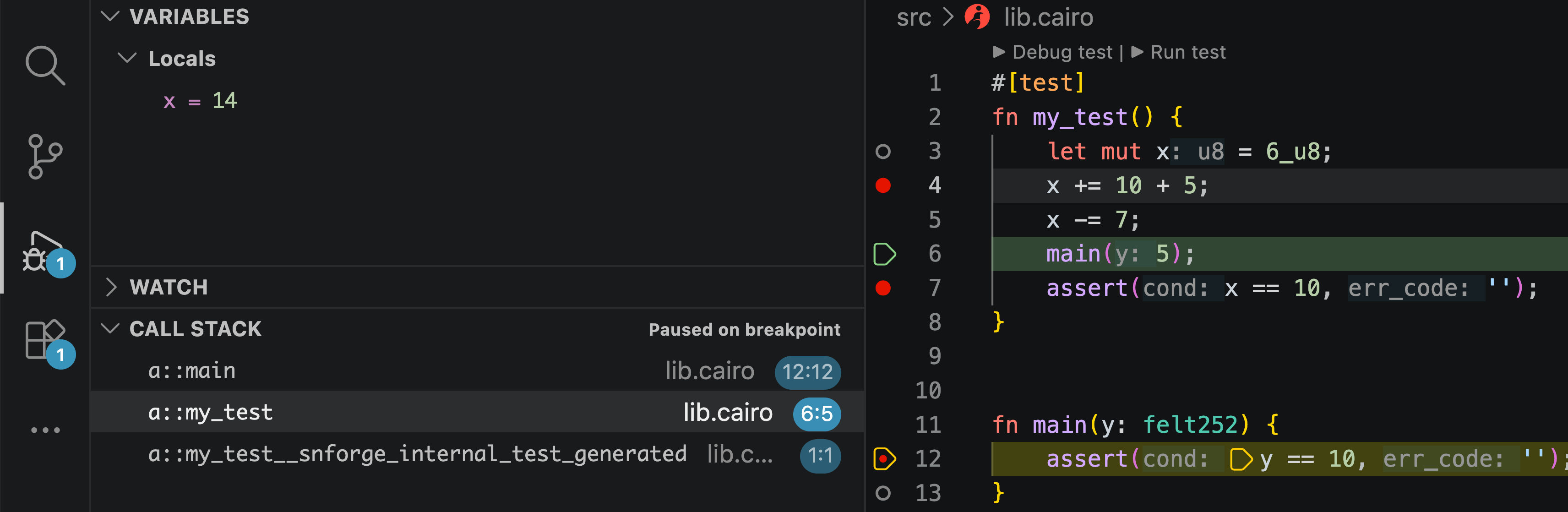
While paused, the Variables panel in the Run and Debug view shows current values of local variables of the current function frame. Similarly, the Call Stack panel shows function frames that are currently on the stack.
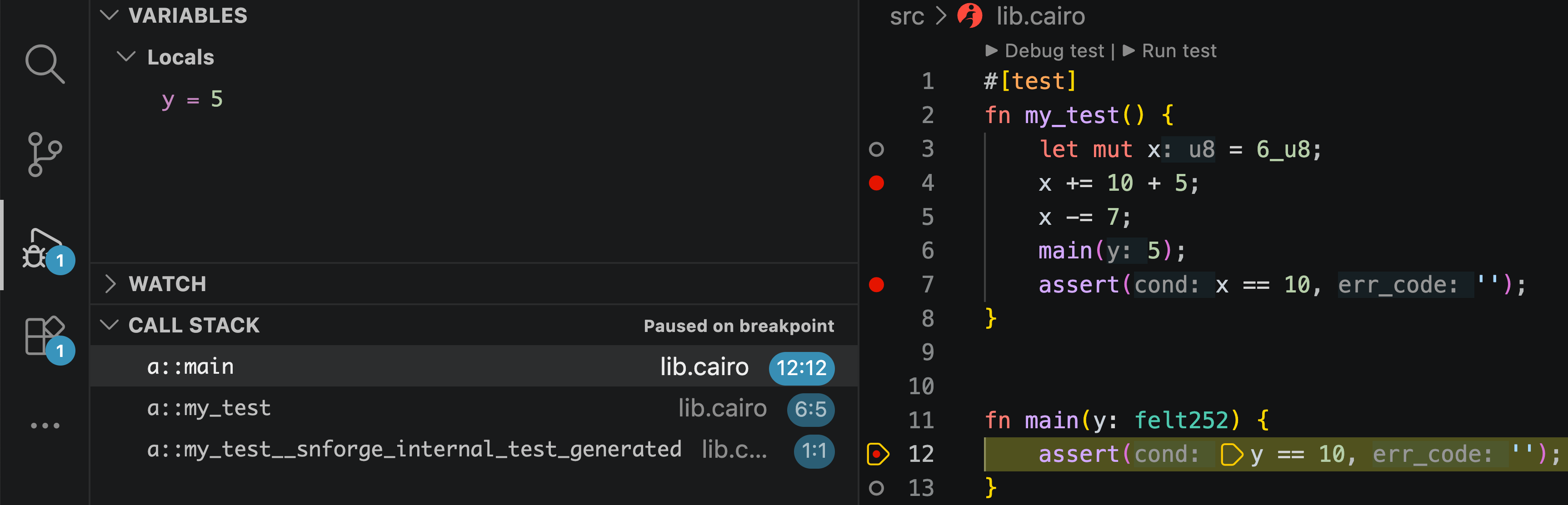
You can click on different function frames to inspect variables of these function frames.