AudioRecorder
AudioRecorder is a primary interface for capturing audio. It supports three main modes of operations:
- File recording: Writing audio data directly to the filesystem.
- Data callback: Emitting raw audio buffers, that can be used in either further processing or streamed.
- Graph processing: Connect the recorder with either
AudioContextorOfflineAudioContextfor further more advanced and/or realtime processing.
Configuration
To access microphone you need to make sure your app has required permission configuration - check getting started permission section for more information.
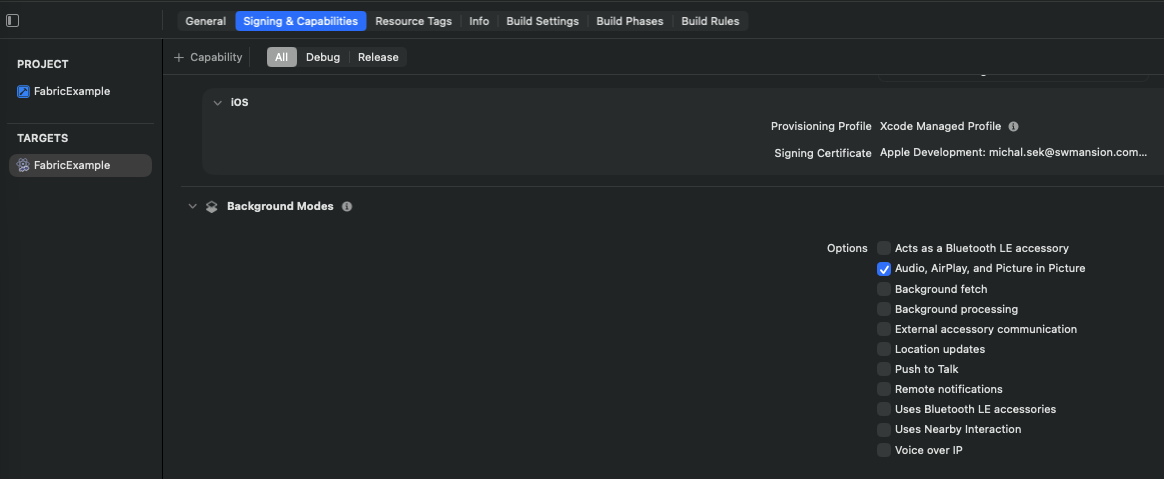
Additionally to be able to record audio while application is in the background, you need to enable background mode on iOS and configure foreground service on android.
- Expo
- iOS
- Android
In an Expo application you can do so through react-native-audio-api expo plugin, e.g.
{
  "plugins": [
    [
      "react-native-audio-api",
      {
        "iosBackgroundMode": true,
        "iosMicrophonePermission": "[YOUR_APP_NAME] requires access to the microphone to record audio.",
        "androidPermissions" : [
          "android.permission.RECORD_AUDIO",
          "android.permission.FOREGROUND_SERVICE",
          "android.permission.FOREGROUND_SERVICE_MICROPHONE",
        ],
        "androidForegroundService": true,
        "androidFSTypes": ["microphone"]
      }
    ]
  ]
}
For more configuration options, check out the Expo plugin section.
For bare react-native applications, background mode is configurable through Signing & Capabilities section of your app target config using XCode.
Microphone permission can be created or modified through the Info.plist file.
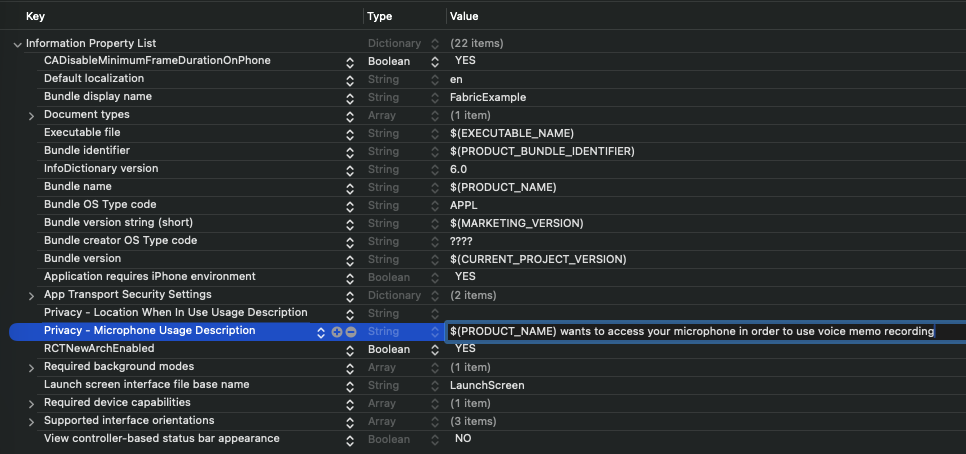
Alternatively you can modify the Info.plist file directly in your editor of choice by adding those lines:
<key>NSMicrophoneUsageDescription</key>
<string>$(PRODUCT_NAME) wants to access your microphone in order to use voice memo recording</string>
<key>UIBackgroundModes</key>
<array>
  <string>audio</string>
</array>
To enable required permissions or foreground service you have to manually edit the AndroidManifest.xml file.
<manifest xmlns:android="http://schemas.android.com/apk/res/android">

  <!-- Foreground service and microphone permissions for background usage -->
  <uses-permission android:name="android.permission.FOREGROUND_SERVICE"/>
  <uses-permission android:name="android.permission.FOREGROUND_SERVICE_MICROPHONE"/>

  <!-- General permission for microphone access -->
  <uses-permission android:name="android.permission.RECORD_AUDIO"/>

  <!-- Paste this inside <application> tag -->
    <service android:stopWithTask="true" android:name="com.swmansion.audioapi.system.CentralizedForegroundService" android:foregroundServiceType="microphone" />
</manifest>
Keeping the recording alive when the app is closed Android
By default the foreground service stops when the user swipes the app away from the recents screen (android:stopWithTask="true"), which kills the app process and ends any in-progress recording. You can opt into letting the service — and therefore the process, the JS runtime, and the active recording — survive task removal:
- Expo
- Android
Set the androidFSStopWithTask option of the expo plugin to false:
{
  "plugins": [
    [
      "react-native-audio-api",
      {
        "androidFSStopWithTask": false
      }
    ]
  ]
}
In a bare react-native application, set android:stopWithTask="false" on the service entry in your AndroidManifest.xml:
<service android:stopWithTask="false" android:name="com.swmansion.audioapi.system.CentralizedForegroundService" android:foregroundServiceType="microphone" />
For the recording to actually survive, all of the following must hold:
- The foreground service only exists while a library notification is shown. Call
RecordingNotificationManager.show()while the app is still in the foreground — before the user leaves the app — otherwise there is no service to keep alive. androidFSTypesmust include"microphone"(manifestforegroundServiceType="microphone"), and on Android 14+ (API 34) the app needs theandroid.permission.FOREGROUND_SERVICE_MICROPHONEpermission.- Android's while-in-use rule applies: microphone access must begin while the app is in the foreground. Starting a recording from the background is not possible.

 caution
Even with stopWithTask="false", the system can still kill the process (memory pressure, OEM battery managers). Recording cannot self-restart from the background — the user has to reopen the app. To limit data loss in that case, tune the file-output options androidFlushIntervalMs and rotateIntervalBytes.
A recording that survives task removal can only be controlled from the notification, so give the user a way out: enable the notification's stop action (showStopAction: true) or let them swipe the notification away (dismissible: true). Both stop the recording natively even when no JS is reachable.
When the app is opened again, reconcile the UI with what happened while it was away:
if (AudioRecorder.isRecordingOngoing()) {
  // the recording is still running — re-attach the UI to it
} else {
  const info = AudioRecorder.consumeLastRecordingResult();
  if (info) {
    // the recording was stopped from the notification; info.paths holds the files
  }
}
Examples
- Record to File
- Data callback
- Graph processing
import React, { useState } from 'react';
import { View, Pressable, Text } from 'react-native';
import { AudioRecorder, AudioManager } from 'react-native-audio-api';

AudioManager.setAudioSessionOptions({
  iosCategory: 'record',
  iosMode: 'default',
  iosOptions: [],
});

const audioRecorder = new AudioRecorder();

// Enables recording to file with default configuration
audioRecorder.enableFileOutput();

const MyRecorder: React.FC = () => {
  const [isRecording, setIsRecording] = useState(false);

  const onStart = async () => {
    if (isRecording) {
      return;
    }

    // Make sure the permissions are granted
    const permissions = await AudioManager.requestRecordingPermissions();

    if (permissions !== 'Granted') {
      console.warn('Permissions are not granted');
      return;
    }

    // Activate audio session
    try {
      await AudioManager.setAudioSessionActivity(true);
    } catch (error) {
      console.warn('Could not activate the audio session', error);
      return;
    }

    const result = await audioRecorder.start();
    if (result.status === 'error') {
      console.warn(result.message);
      return;
    }

    console.log('Recording started');
    setIsRecording(true);
  };

  const onStop = async () => {
    if (!isRecording) {
      return;
    }

    const result = await audioRecorder.stop();
    console.log(result);
    setIsRecording(false);
    await AudioManager.setAudioSessionActivity(false);
  };

  return (
    <View>
      <Pressable onPress={isRecording ? onStop : onStart}>
        <Text>{isRecording ? 'Stop' : 'Record'}</Text>
      </Pressable>
    </View>
  );
};

export default MyRecorder;
import React, { useState, useEffect } from 'react';
import { View, Pressable, Text } from 'react-native';
import { AudioRecorder, AudioManager } from 'react-native-audio-api';

AudioManager.setAudioSessionOptions({
  iosCategory: 'record',
  iosMode: 'default',
  iosOptions: [],
});

const audioRecorder = new AudioRecorder();
const sampleRate = 16000;

const MyRecorder: React.FC = () => {
  const [isRecording, setIsRecording] = useState(false);

  useEffect(() => {
    audioRecorder.onAudioReady(
      {
        sampleRate,
        bufferLength: sampleRate * 0.1, // 0.1s of audio each batch
        channelCount: 1,
      },
      ({ buffer, numFrames, when }) => {
        // do something with the data, i.e. stream it
      }
    );

    return () => {
      audioRecorder.clearOnAudioReady();
    };
  }, []);

  const onStart = async () => {
    if (isRecording) {
      return;
    }

    // Make sure the permissions are granted
    const permissions = await AudioManager.requestRecordingPermissions();

    if (permissions !== 'Granted') {
      console.warn('Permissions are not granted');
      return;
    }

    // Activate audio session
    try {
      await AudioManager.setAudioSessionActivity(true);
    } catch (error) {
      console.warn('Could not activate the audio session', error);
      return;
    }

    const result = await audioRecorder.start();

    if (result.status === 'error') {
      console.warn(result.message);
      return;
    }

    setIsRecording(true);
  };

  const onStop = async () => {
    if (!isRecording) {
      return;
    }

    await audioRecorder.stop();
    setIsRecording(false);
    await AudioManager.setAudioSessionActivity(false);
  };

  return (
    <View>
      <Pressable onPress={isRecording ? onStop : onStart}>
        <Text>{isRecording ? 'Stop' : 'Record'}</Text>
      </Pressable>
    </View>
  );
};

export default MyRecorder;
import React, { useState } from 'react';
import { View, Pressable, Text } from 'react-native';
import { AudioRecorder, AudioContext, AudioManager } from 'react-native-audio-api';

AudioManager.setAudioSessionOptions({
  iosCategory: 'playAndRecord',
  iosMode: 'default',
  iosOptions: [],
});

const audioRecorder = new AudioRecorder();
const audioContext = new AudioContext();

const MyRecorder: React.FC = () => {
  const [isRecording, setIsRecording] = useState(false);

  const onStart = async () => {
    if (isRecording) {
      return;
    }

    // Make sure the permissions are granted
    const permissions = await AudioManager.requestRecordingPermissions();

    if (permissions !== 'Granted') {
      console.warn('Permissions are not granted');
      return;
    }

    // Activate audio session
    try {
      await AudioManager.setAudioSessionActivity(true);
    } catch (error) {
      console.warn('Could not activate the audio session', error);
      return;
    }

    audioRecorder.connect(audioContext, audioContext.destination);

    if (audioContext.state === 'suspended') {
      await audioContext.resume();
    }

    const result = await audioRecorder.start();

    if (result.status === 'error') {
      console.warn(result.message);
      return;
    }

    setIsRecording(true);
  };

  const onStop = async () => {
    if (!isRecording) {
      return;
    }

    await audioRecorder.stop();
    audioContext.suspend();
    setIsRecording(false);
    await AudioManager.setAudioSessionActivity(false);
  };

  return (
    <View>
      <Pressable onPress={isRecording ? onStop : onStart}>
        <Text>{isRecording ? 'Stop' : 'Record'}</Text>
      </Pressable>
    </View>
  );
};

export default MyRecorder;
API
Method | Description |
Constructor | Creates a new Full-duplex voice apps (playing audio while recording) need platform echo cancellation on both platforms, otherwise the speaker output leaks back into the microphone: |
Starts the stream from the system audio input device. Returns a | |
Stops the input stream and cleans up each input access method. Returns a For details on the returned file information, see FileInfo. | |
Pauses the recording. This is useful when recording to file is active, but you do not want to finalize the file. Returns a | |
Resumes the recording if it was previously paused; otherwise does nothing. Returns a | |
isRecording | Returns |
isPaused | Returns |
Returns | |
Returns the FileInfo stashed by the last successful stop that produced output files, or If the recording was already finalized natively, calling stop on an | |
onError | Sets an error callback for internal errors that might happen during file writing, callback invocation, or adapter access. For details, see OnRecorderErrorEventType. |
clearOnError | Removes the error callback. |
Properties
Property | Description |
options |
|
inputLatency |
|
Recording to file
Method | Description |
enableFileOutput | Configures and enables file output with the given options and stream properties. By default, the recorder writes to the cache directory using a high-quality Must be called while the recorder is idle: the file is created by the next start. The requested format is checked against the platform's system encoders at this call, so an unsupported format fails here. Throws For further information, see AudioRecorderFileOptions and the per-platform format table in FileFormat. |
Disables file output and finalizes the currently recorded file if the recorder is active. Returns a | |
getCurrentDuration | Returns the current recording duration ( |
Data callback
Method | Description |
onAudioReady | Registers a callback that receives raw audio buffers during an active recording session. Returns The callback is periodically invoked with audio buffers that match the preferred configuration provided in For further information, see AudioRecorderCallbackOptions and OnAudioReadyEventType. |
clearOnAudioReady | Removes the audio data callback and flushes any remaining buffered data through |
Graph processing
Method | Description |
connect | Routes captured audio into an audio graph by creating a recorder adapter with BaseAudioContext.createRecorderAdapter(), connecting the recorder to it, and wiring it to |
disconnect | Disconnects |
Types
AudioRecorderOptions
interface AudioRecorderOptions {
  androidInputPreset?: AndroidInputPreset;
  iosVoiceProcessing?: boolean;
}
| Parameter | Type | Default | Description |
|---|---|---|---|
androidInputPreset Optional Android | AndroidInputPreset | 'voiceRecognition' | Preprocessing chain applied to the capture stream. The platform default, voiceRecognition, applies no acoustic echo cancellation - use voiceCommunication to engage the platform AEC/NS chain. |
iosVoiceProcessing Optional iOS | boolean | false | Runs the capture chain through Apple's voice-processing I/O: acoustic echo cancellation, noise suppression and automatic gain control. |
Both options are applied when the capture stream is created and cannot be changed afterwards - create a new recorder to switch configuration. Each option is ignored on the other platform.
cautionVoice processing changes the hardware input format and engages a shared platform processing unit, so the resolved sample rate and channel count of the recorded audio may differ from the raw microphone format.
AndroidInputPreset
type AndroidInputPreset =
  | 'generic'
  | 'camcorder'
  | 'voiceRecognition'
  | 'voiceCommunication'
  | 'unprocessed'
  | 'voicePerformance';
Names of Oboe's InputPreset values, which select the preprocessing chain the capture stream is opened with.
AudioRecorderCallbackOptions
interface AudioRecorderCallbackOptions {
  sampleRate: number;
  bufferLength: number;
  channelCount: number;
}
-
sampleRate- The desired sample rate (in Hz) for audio buffers delivered to the recording callback. Common values include44100or48000Hz. The actual sample rate may differ depending on hardware and system capabilities. -
bufferLength- The preferred size of each audio buffer, expressed as the number of samples per channel. Smaller buffers reduce latency but increase CPU load, while larger buffers improve efficiency at the cost of higher latency. -
channelCount- The desired number of audio channels per buffer. Typically1for mono or2for stereo recordings.
cautionIncoming audio is collected in an internal buffer until a full bufferLength chunk can be emitted. That buffer can overflow when a single batch of microphone data is larger than it can hold, which happens when the requested sampleRate is much higher than the hardware rate (the data is upsampled before buffering) or when the system delivers input in large batches, for example under a high I/O buffer duration.
When this happens the frames from that batch are dropped and onError is called instead of onAudioReady. If you see such errors, lower sampleRate towards the hardware rate, adjust bufferLength or lower system latency in AudioContext.
OnRecorderErrorEventType
interface OnRecorderErrorEventType {
  message: string;
}
OnAudioReadyEventType
Represents the data payload received by the audio recorder callback each time a new audio buffer becomes available during recording.
interface OnAudioReadyEventType {
  buffer: AudioBuffer;
  numFrames: number;
  when: number;
}
buffer- The audio buffer containing the recorded PCM data. This buffer includes one or more channels of floating-point samples in the range of-1.0to1.0.numFrames- The number of audio frames contained in this buffer. A frame represents a single sample across all channels.when- The timestamp (in seconds) indicating when this buffer was captured, relative to the start of the recording session.
File handling
AudioRecorderFileOptions
interface AudioRecorderFileOptions {
  channelCount?: number;
  rotateIntervalBytes?: number;

  format?: FileFormat;
  preset?: FilePresetType;

  directory?: FileDirectory;
  subDirectory?: string;
  fileName?: string;
  androidFlushIntervalMs?: number;
}
channelCount- The channel count of the resulting file:1(mono) or2(stereo).rotateIntervalBytes- The threshold size (in bytes) at which the recorder will start writing to a new file. If set to0(default), file output rotation is disabled. When active, each segment carries a three-digit index (_001,_002, …) — see File naming. You can join the rotated files after recording withconcatAudioFiles.- Use a large enough value for your format. Very small thresholds rotate often, which increases the chance of audible gaps or muffled joins after concatenation — especially for M4A, where each segment is a separate AAC encode.
- Practical starting points: ≥ 1 MB for WAV, ≥ 200 KB for M4A (adjust upward if you still hear artifacts at segment boundaries).
- This option controls segment file size, not RAM usage. For crash-resilience tuning on Android, use
androidFlushIntervalMsinstead.
format- The desired extension and file format of the recorder file. Check: FileFormat below.preset- The desired recorder file properties, you can use either one of built-in properties or tweak low-level parameters yourself. Check FilePresetType for more details.directory- EitherFileDirectory.CacheorFileDirectory.Document(default:FileDirectory.Cache). Determines the system directory that the file will be saved to.subDirectory- If configured it will create the recording inside requested directory (default:undefined).fileName- Names the output file outright. Left unset, the library generatesrecording_<timestamp>. See File naming below.androidFlushIntervalMs- How often the recorder should force the system to write data to the device storage (default:500).- Lower values are good for crash-resilience and are more memory friendly.
- Higher values are more battery - and storage-efficient.
File naming
fileName names the output file outright. Left unset, the library generates a name from the
start time, and keeps it clear of existing files. Rotation appends a segment index either way,
because one recording then spans several files.
fileName | rotateIntervalBytes | Resulting file(s) |
|---|---|---|
| — | 0 | recording_20260909_101500.wav |
session-42 | 0 | session-42.wav |
| — | > 0 | recording_20260909_101500_001.wav, _002, … |
session-42 | > 0 | session-42_001.wav, session-42_002.wav, … |
The generated timestamp is taken once per recording, in local time, so every segment of one rotated recording shares it and only the index differs.
fileName has to be a bare name: no extension (it follows from format), no path
separators and no ...
The segment index is padded to three digits and keeps counting beyond that (_999,
_1000, …). Names stay unique; only their lexicographic order breaks past 999 segments —
stop() still returns paths in recording order.
An audio route change mid-session (headphones connecting, say) alters the input format on iOS, but the recording carries on in the same file: only the conversion from the input to the file's format is rebuilt. A recording without rotation is always a single file.
A generated name never overwrites: when two recordings start within the same second and
would share a timestamp, the later one gets a counter appended
(recording_20260909_101500_1.wav, _2, …).
cautionfileName puts you in charge of telling recordings apart. An existing file of the same name
is overwritten, with a warning in the native log, and two recordings started under the
same fileName overwrite each other — with rotation, segment by segment, since numbering
restarts at _001 every time. Make the name unique per recording yourself.
FileFormat
Describes desired file extension as well as codecs, containers (and muxers!) used to encode the file.
All encoding is done with platform system APIs — iOS AVFoundation and Android MediaCodec/MediaMuxer. Because each platform exposes a different set of system encoders, format support is platform-specific.
enum FileFormat {
  Wav,
  Caf,
  M4A,
  Flac,
  Aiff,
  Alac,
  OpusOgg,
  OpusWebm,
  VorbisWebm,
  Ulaw,
  Alaw,
}
The table below lists which formats each platform can encode with its system APIs:
FileFormat | Container / codec | iOS | Android |
|---|---|---|---|
Wav | WAV / PCM | ✅ | ✅ |
M4A | M4A / AAC-LC | ✅ | ✅ |
Flac | FLAC / FLAC | ✅ | ✅ |
Caf | CAF / PCM | ✅ | ❌ |
Aiff | AIFF / PCM | ✅ | ❌ |
Alac | M4A / Apple Lossless | ✅ | ❌ |
Ulaw | WAV / µ-law | ✅ | ❌ |
Alaw | WAV / a-law | ✅ | ❌ |
OpusOgg | OGG / Opus | ❌ | ✅ |
OpusWebm | WebM / Opus | ❌ | ✅ |
VorbisWebm | WebM / Vorbis | ❌ | ✅ |
Platform supportSelecting a format the current platform cannot encode (for example Caf on Android or OpusOgg on iOS) fails when file output is enabled, with a descriptive error. Some Android formats also depend on the device OS version (Opus/OGG muxing requires newer releases); if a device lacks a system encoder for the requested format, recording start returns an error. Use Wav, M4A, or Flac for the widest cross-platform support.
FileInfo
interface FileInfo {
  paths: string[];
  size: number;
  duration: number;
}
paths- Paths to the recorded audio files. When file rotation is disabled it has only one entry, otherwise list of paths to recorder files is returned.size- The file size (in MB).duration- The recording duration (in seconds).
FilePresetType
Describes the audio format that is used during writing to file as well as encoded final file properties. You can use one of predefined presets, or fully customize the result file, but be aware that the properties aren't limited to only valid configurations, you may find property pairs that will result in error result during recording start (or when enabling the file output during active input session)!
Built-in file presets
For convenience we have provided a set of most basic file configurations that should cover most of the cases (or at least we hope they will, please raise an issue if you find something lacking or misconfigured!).
Usage
import { AudioRecorder, FileFormat, FilePreset } from 'react-native-audio-api';

const audioRecorder = new AudioRecorder();

audioRecorder.enableFileOutput({
  format: FileFormat.M4A,
  preset: FilePreset.High,
});
Preset | Description |
Lossless | Writes audio data directly to file without encoding, preserving the maximum audio quality supported by the device. This results in large file sizes, particularly for longer recordings. Available only when using WAV or CAF file formats. |
High Quality | Uses high-fidelity audio parameters with efficient encoding to deliver near-lossless perceptual quality while producing smaller files than fully uncompressed recordings. Suitable for music and high-quality voice capture. |
Medium Quality | Uses balanced audio parameters that provide good perceptual quality while keeping file sizes moderate. Intended for everyday recording scenarios such as voice notes, podcasts, and general in-app audio, where efficiency and compatibility outweigh maximum fidelity. |
Low Quality | Uses reduced audio parameters to minimize file size and processing overhead. Designed for cases where speech intelligibility is sufficient and audio fidelity is not critical, such as quick voice notes, background recording, or diagnostic capture. |
Preset customization
In addition to the predefined presets, you may supply a custom FilePresetType to fine-tune how audio data is written and encoded. This allows you to optimize for specific use cases such as speech-only recording, reduced storage footprint, or faster encoding.
export interface FilePresetType {
  bitRate: number;
  sampleRate: number;
  bitDepth: BitDepth;
  iosQuality: IOSAudioQuality;
  flacCompressionLevel: FlacCompressionLevel;
}
Property | Description | |||||||||||||||||||||
bitRate | Defines the target bitrate for lossy encoders (for example AAC or M4A). Higher values generally improve perceptual quality at the cost of larger file sizes. This value may be ignored when using lossless formats.
| |||||||||||||||||||||
sampleRate | Specifies the sampling frequency used during recording. Higher sample rates capture a wider frequency range but increase processing and storage requirements. | |||||||||||||||||||||
bitDepth | Controls the PCM bit depth of the recorded audio. Higher bit depths increase dynamic range and precision, primarily affecting uncompressed or lossless output formats. | |||||||||||||||||||||
iosQuality | Maps the preset to the closest matching quality level provided by iOS native audio APIs, ensuring consistent behavior across Apple devices. | |||||||||||||||||||||
flacCompressionLevel | Determines the compression level used when encoding FLAC files. Higher levels reduce file size at the cost of increased CPU usage, without affecting audio quality. |
Remarks
Asynchronous methods
start, stop, pause, resume and disableFileOutput return promises, but a recorder runs them one at a time, in the order they were called. A later call never overtakes an earlier one, so you can fire several in a row without awaiting each:
audioRecorder.start();
audioRecorder.pause();
await audioRecorder.resume(); // start and pause have already completed here
Await a call only when you need its result or want to observe the state it leaves behind, e.g. isPaused() after pause, or the FileInfo returned by stop.
AudioContext and OfflineAudioContext order their suspend, resume, close and startRendering promises the same way.