Slow animations
When debugging animations, it's often useful to slow them down to closely observe how they play out. Reanimated supports slow animations on both iOS and Android without any additional setup.


How does it work?
Reanimated animations are driven by frame timestamps. When slow animations are enabled, Reanimated rescales the timestamps passed to its animation loop, so all animations driven by Reanimated – including animations of shared values, layout animations and keyboard-driven animations – slow down accordingly.
On iOS, Reanimated reads the Simulator's animation drag coefficient and applies the same slowdown factor. On Android, Reanimated divides the elapsed time by a factor of 10.
iOS
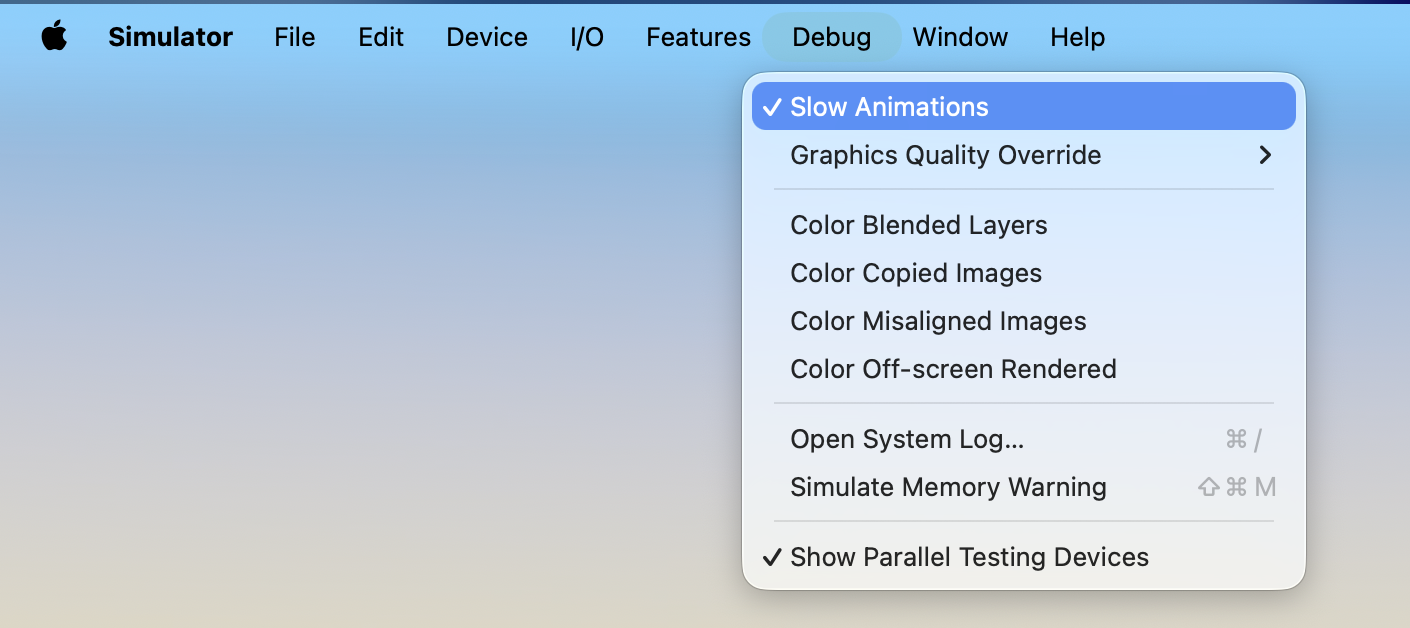
On iOS, use the built-in Slow Animations feature of the iOS Simulator. Reanimated automatically detects it and slows down its animations by the same factor as the system ones (10 times).
To enable it, select Debug > Slow Animations in the iOS Simulator menu bar.
Android
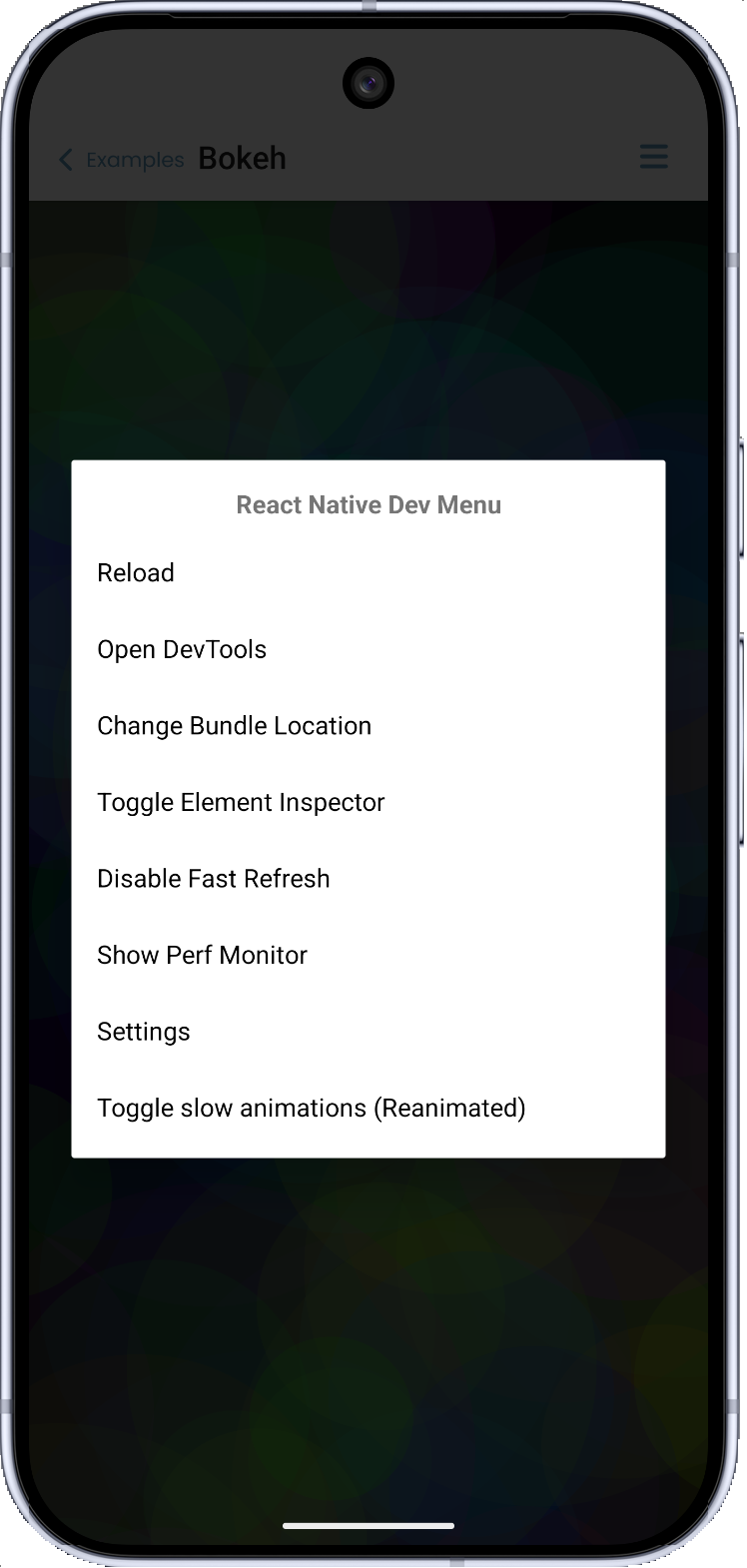
On Android, Reanimated adds a custom option to the React Native Dev Menu. When enabled, animations run 10 times slower. The option is currently not available in Expo apps.
To enable it, open the Dev Menu (press d in the Metro console, shake the device, press Cmd + M or Ctrl + M in the Android Emulator, or run adb shell input keyevent 82) and select Toggle slow animations (Reanimated).
Remarks
-
Slow animations are a development-only tool. On iOS, the toggle is available only in the Simulator – there's no way to enable slow animations on a physical device. On Android, the option is part of the Dev Menu, which is available only in debug builds.
-
Enabling slow animations doesn't interrupt ongoing animations – they seamlessly continue at a slower pace. However, when you disable slow animations, the animation clock jumps forward to catch up with real time, which kept passing at full speed all along. As a result, ongoing animations jump ahead, usually straight to their final state.
-
If you need to inspect animations frame by frame, record the screen and open the recording in a media player that steps through individual frames (i.e. QuickTime Player with the left and right arrow keys).
Platform compatibility
| Android | iOS | Web |
|---|---|---|
| ✅ | ✅ | ❌ |