
Live preview on a phone
Audio in a plugin window tells you the rhythm of a haptic. Only a phone tells you how it feels. The Live preview tab pairs one, opens your prototype on it, and plays the bound haptic whenever you tap an element - while you keep editing in Figma.
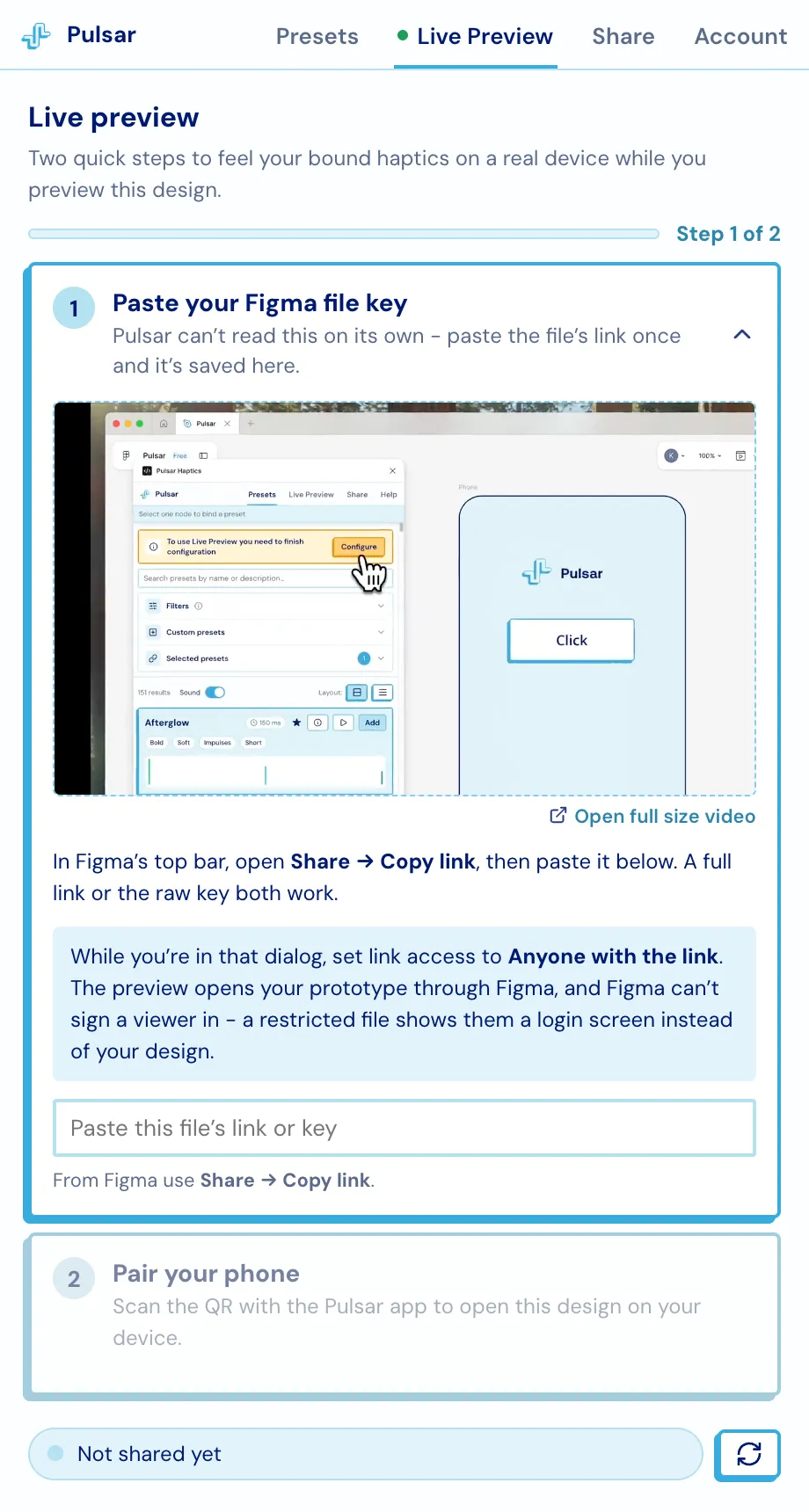
Step 1 - paste the file link
Section titled “Step 1 - paste the file link”Figma doesn’t hand a plugin the key of the file it is running in, so you paste it once. In Figma’s top bar open Share → Copy link and drop it in; a full link or the bare key both work. It’s saved with the file.
Step 2 - pair your phone
Section titled “Step 2 - pair your phone”Scan the QR with the Pulsar app (App Store · Google Play) or type the pairing code. The panel also carries store QR codes if you don’t have the app yet.
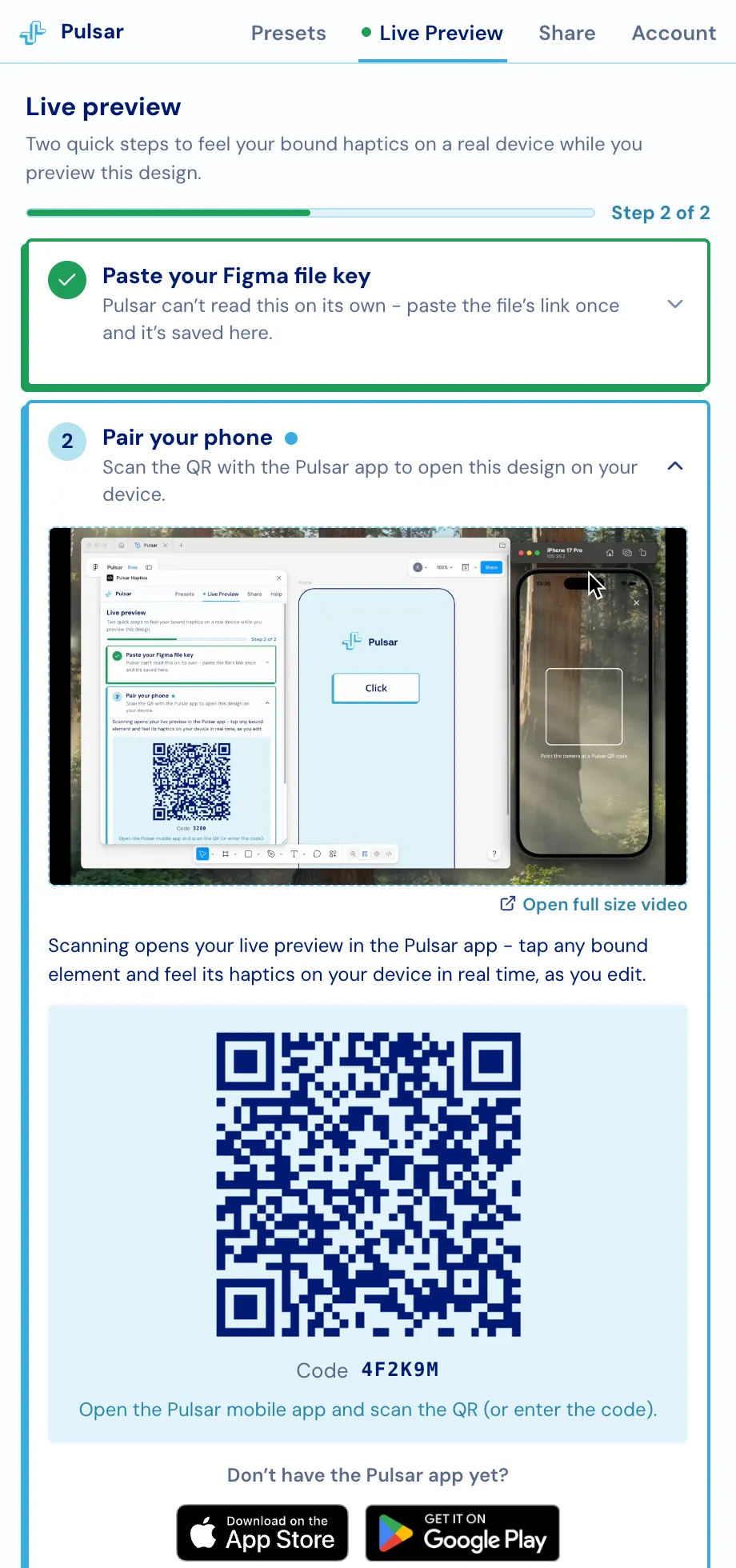
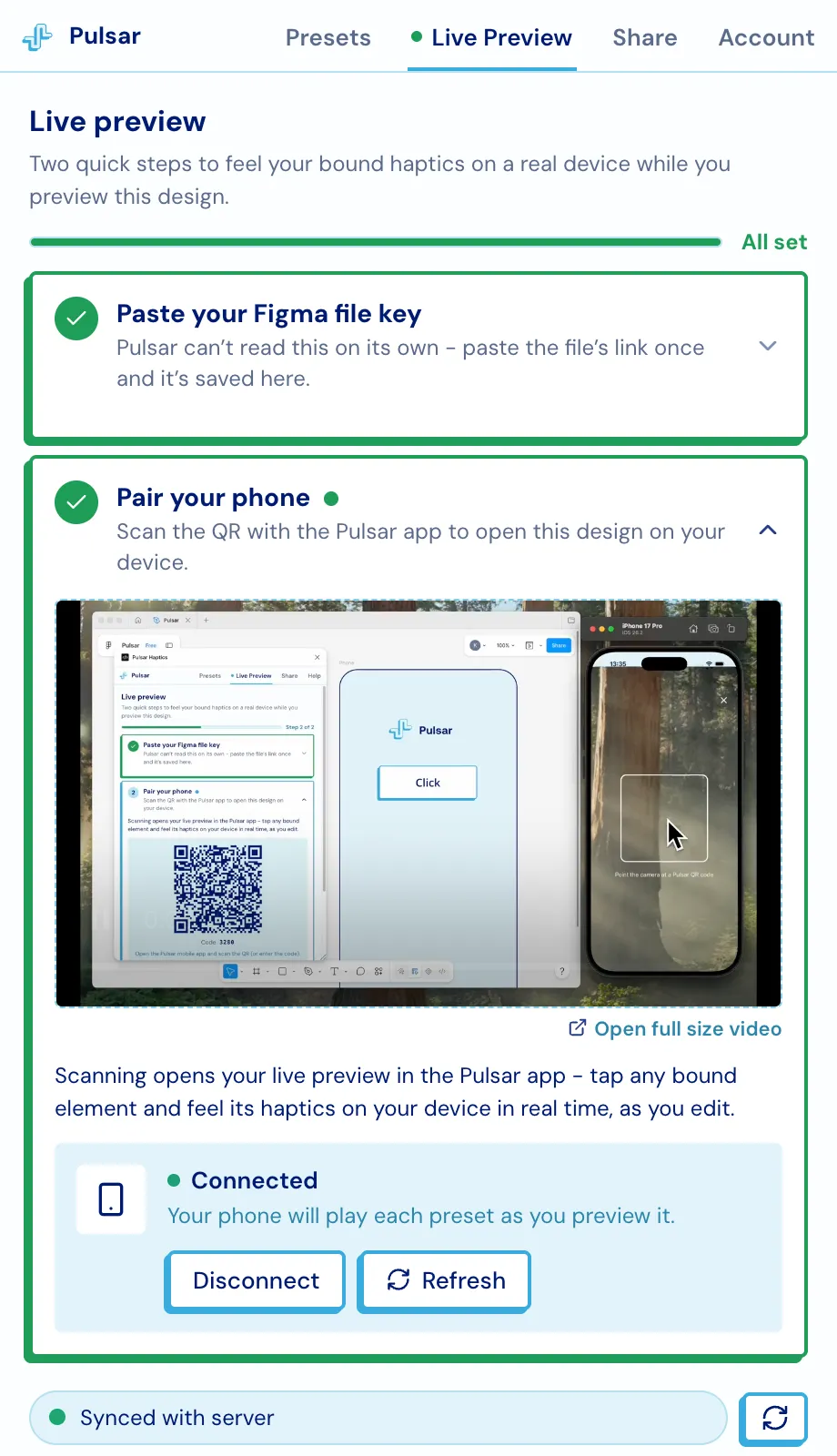
Once paired, the step turns green and the card reports whether the phone is actually reachable. The link survives leaving the tab and closing the panel; it ends when you press Disconnect or close the plugin.
What you get
Section titled “What you get”-
Tap anything bound, feel it. Your prototype runs on the phone; tapping an element with a haptic on it fires the real vibration.
-
Play from the plugin. Pressing ▷ on any preset in the Presets tab buzzes the paired phone too - choosing by feel instead of by name.
Auditioning presets on the paired device. -
The phone follows you. Select a different top-level frame in Figma and the phone jumps to that screen.
-
Edits arrive on their own. Bind, rebind or unbind and the change reaches the phone within a couple of seconds - no reload, no re-scan.
The sync status
Section titled “The sync status”The pill at the foot of the tab says whether the shared preview matches your current design.
| Status | Meaning |
|---|---|
| Not shared yet | Nothing has been published for this file |
| Syncing… | A change is on its way to the server |
| Synced with server | The preview matches your design |
| Unsynced changes | Edits are pending; the refresh button pushes them now |
| Sync failed | It will retry on its own |
If the phone won’t connect
Section titled “If the phone won’t connect”- Check that the pasted link is a real Figma link and that the file is shared as Anyone with the link.
- Make sure the Pulsar app is up to date and the phone has a working connection.
- Re-scan the QR if pairing timed out, or press Refresh on the phone card.