
Account & settings
Your subscription
Section titled “Your subscription”The Account tab shows which account you’re signed in as and the state of your plugin licence - a running free trial, an active subscription and when it renews, or a cancelled one and the date access ends.
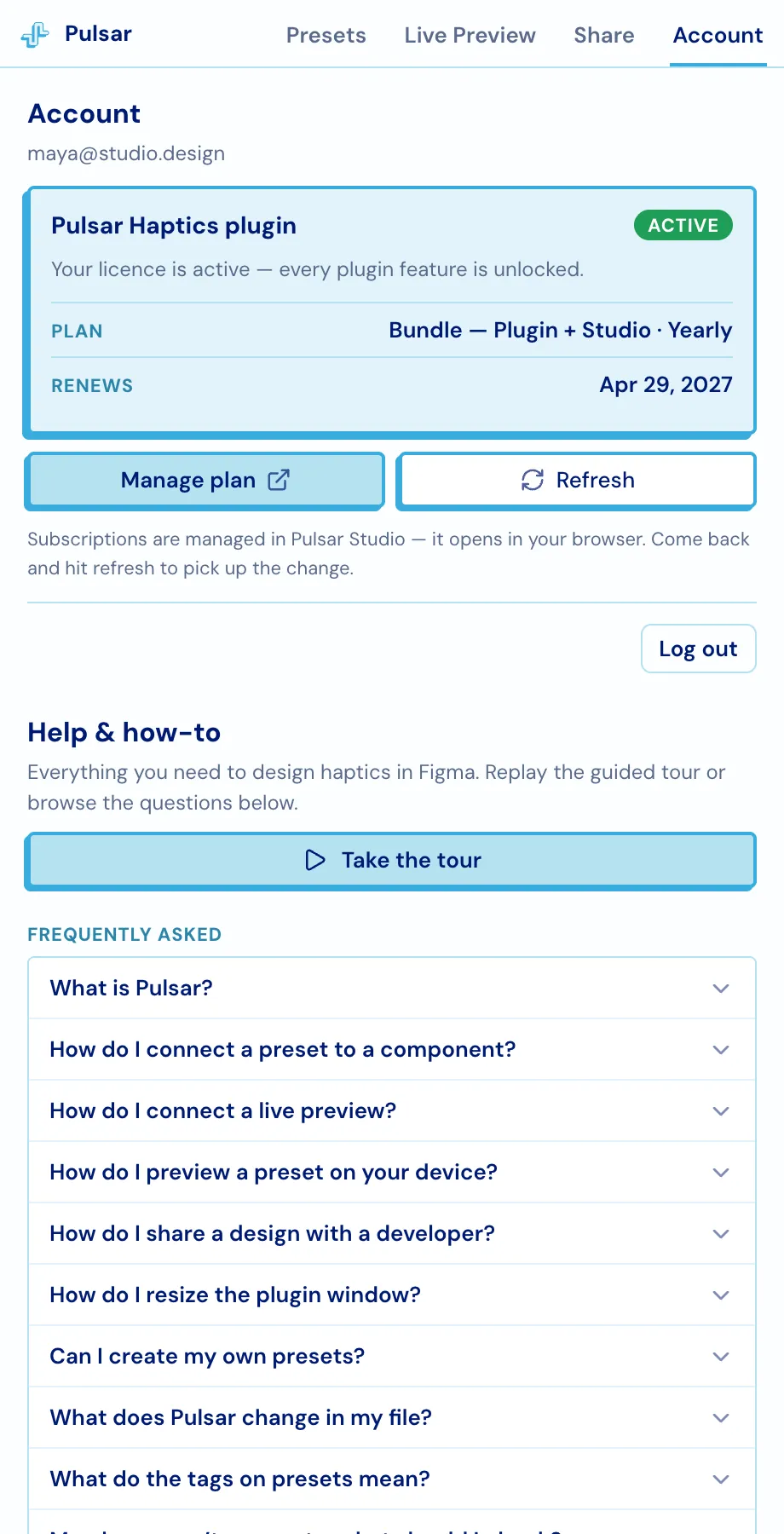
Subscriptions are managed on the web, not in the plugin. Change something in Studio, come back and press Refresh.
Help & how-to
Section titled “Help & how-to”Below the licence card: Take the tour replays the five-step walkthrough, and a FAQ answers the questions the tour raises - how to bind, how to pair, what the tags mean, what Pulsar writes into your file, and why a phone might not connect.
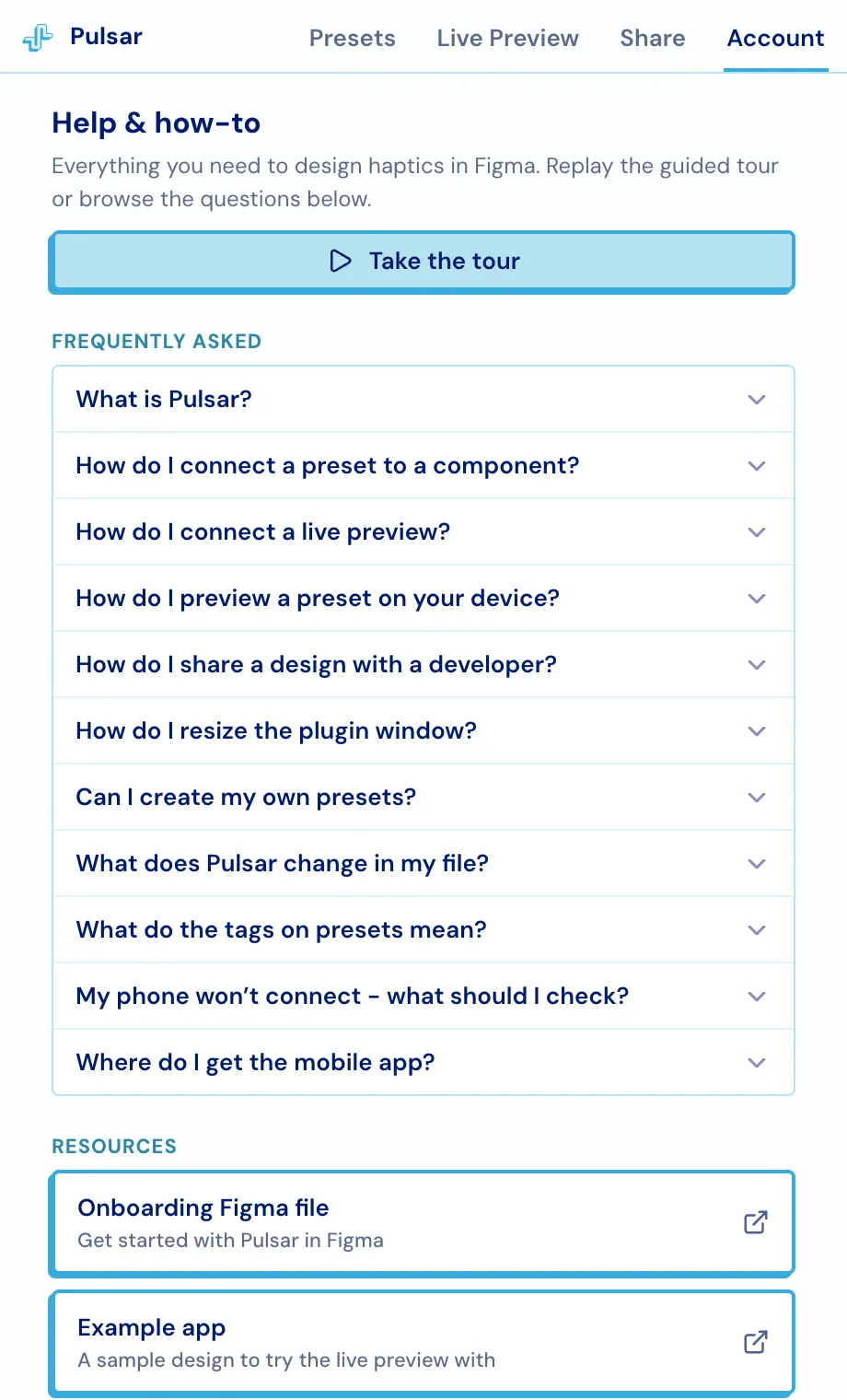
Resources links out to an onboarding Figma file, an example app to try the live preview against, and the privacy policy and terms. Send feedback reaches the Pulsar team directly.
Privacy
Section titled “Privacy”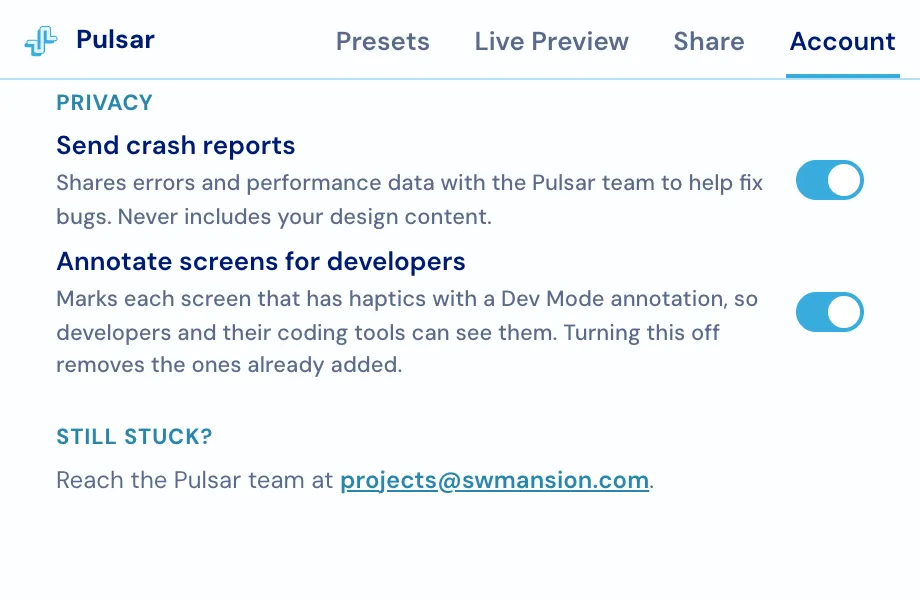
- Send crash reports - shares errors and performance data to help fix bugs. It never includes your design content.
- Annotate screens for developers - marks each screen that has haptics with a Dev Mode annotation so developers and their coding tools can see them. Turning it off removes the annotations already added.
Resizing the window
Section titled “Resizing the window”Drag the grip in the bottom-right corner to resize in both directions, or the right and bottom edges to change just the width or the height. Figma plugin windows can’t be dragged from their outer edges, so these handles are the only way - and the size is remembered for next time.