
Settings & shortcuts
In the editor
Section titled “In the editor”The rail’s Settings panel holds everything that changes how the editor behaves: theme, grid density, value precision, the crosshair rails, the time cursor, multilayer selection, playback preferences, the full keyboard and mouse reference, Help (which replays the walkthroughs), and a link out to your account.
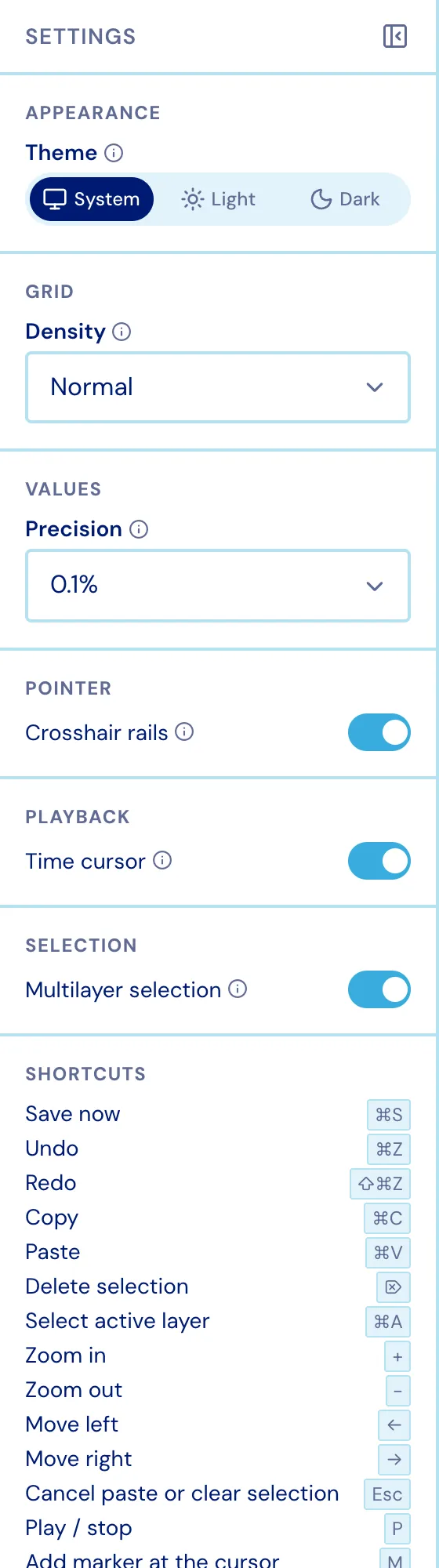
On the Settings page
Section titled “On the Settings page”The dashboard’s Settings page covers the account: who you are and how you sign in, what is in your account against what this browser has cached, clearing local data, appearance, Help & learning, and deleting your account.
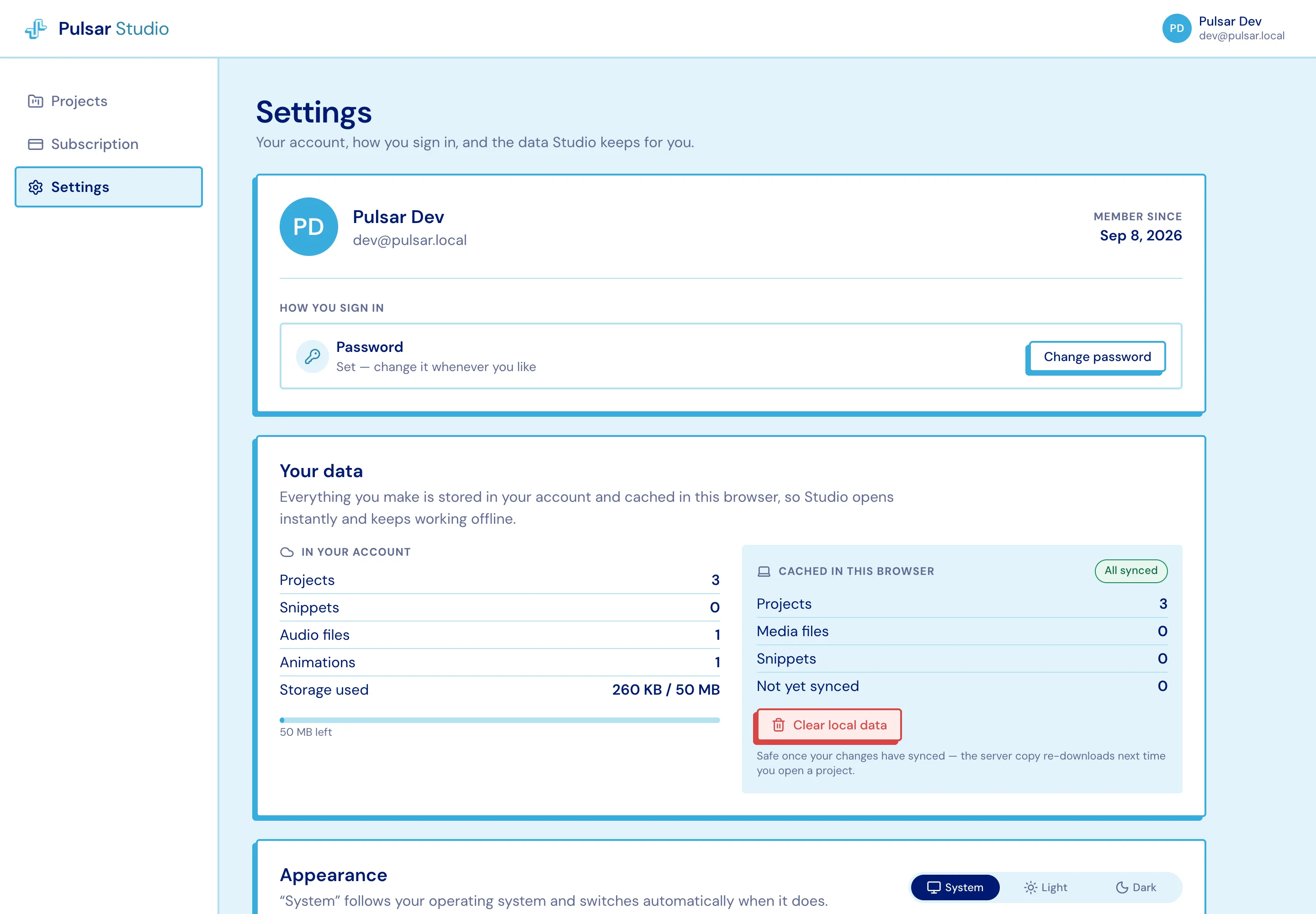
Studio follows your operating system’s light/dark setting unless you override it.
The Settings panel’s shortcut list is generated from the same registry the key handlers match on, so it can only ever advertise keys that work. Worth memorising:
| Key | Does |
|---|---|
P | Play / stop |
1 2 3 | Activate Intensity / Frequency / Discrete |
⌘Z / ⇧⌘Z | Undo / redo |
⌘A | Select everything on the active layer |
⌘S | Save now |
+ / - | Zoom in / out |
| Arrow keys | Scroll through time |
M | Add a marker at the cursor |
Esc | Back out of one thing - paste ghost, then snippet rails, then the selection |
Pointer gestures: double-click to add, drag to move, Shift+drag to constrain to one axis, marquee-drag to select a group, middle-drag to pan, ⌘/Ctrl+wheel to zoom at the pointer, wheel to scroll through time.