
Your own patterns
The 151 designed presets cover most interactions. When none of them is right, draw your own in Pulsar Studio - it appears in the plugin straight away.
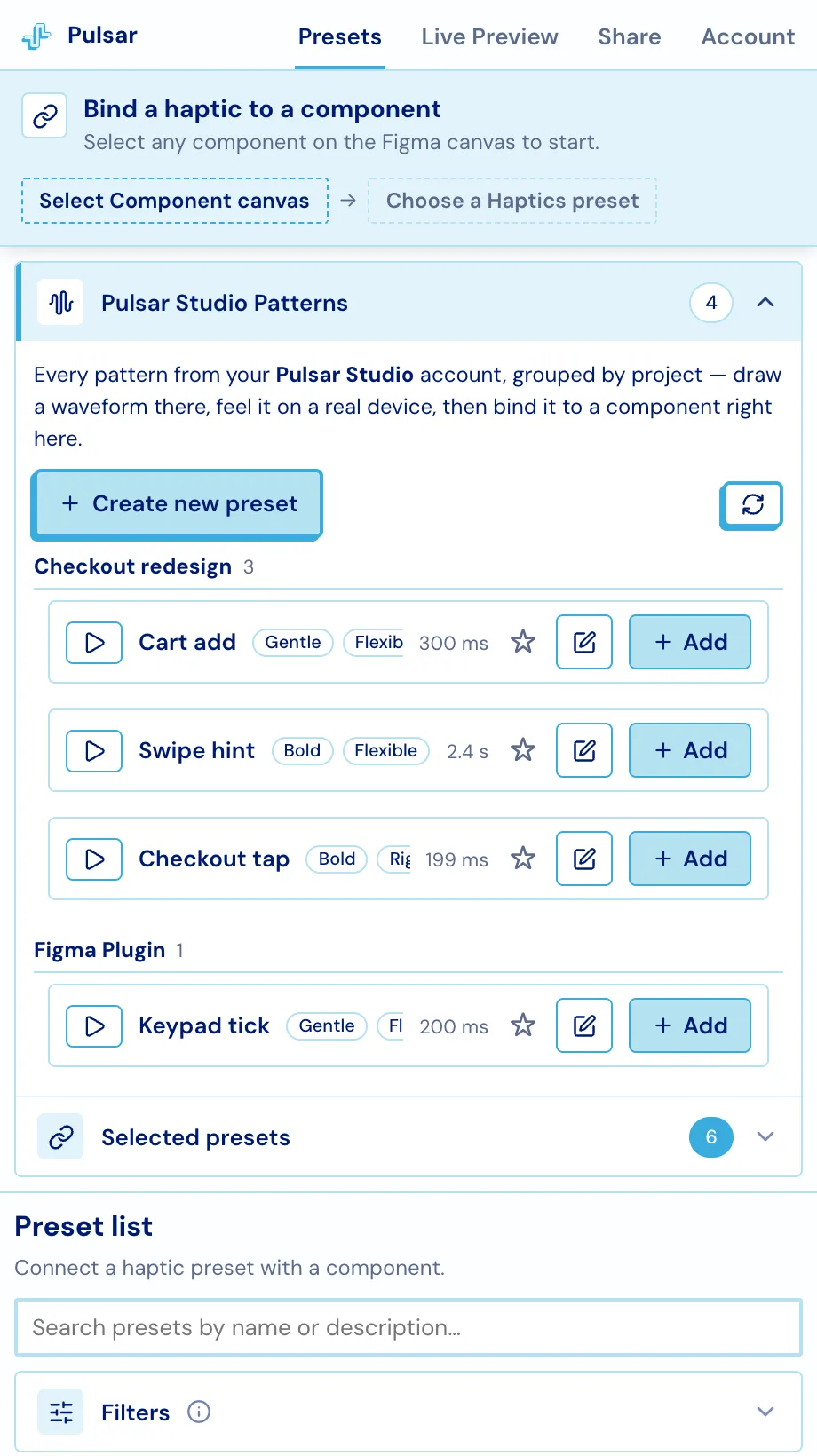
Pulsar Studio Patterns, at the top of the Presets tab, lists every pattern on your Pulsar account, grouped by Studio project.
Creating one
Section titled “Creating one”+ Create new preset opens Studio in your browser on a blank pattern. Draw the intensity and frequency envelopes, drop in discrete taps, feel it on a real device, and save - The editor covers the drawing itself. The pattern lands in your account’s Figma Plugin project.
Back in the plugin, expanding the panel re-fetches the list, so a pattern you just saved is one click away. The ⟳ button forces a refresh.
Editing one
Section titled “Editing one”The ✎ button on any of your patterns reopens it in Studio at the right project and pattern. Save there and the plugin picks up the new version on its next refresh - components already bound to it keep their binding and start playing the updated pattern.
Binding them
Section titled “Binding them”Identical to the library: select a layer, press + Add. Custom patterns work everywhere a built-in preset does - edit-mode playback, the paired phone, the shared preview, and the SDK snippet in the details dialog.
The one difference is on the developer’s side. A built-in preset is called by name; a custom pattern is sent as data, and its snippet composes the pattern rather than naming it. Both are in the details dialog under Usage.