
Sharing & developer handoff
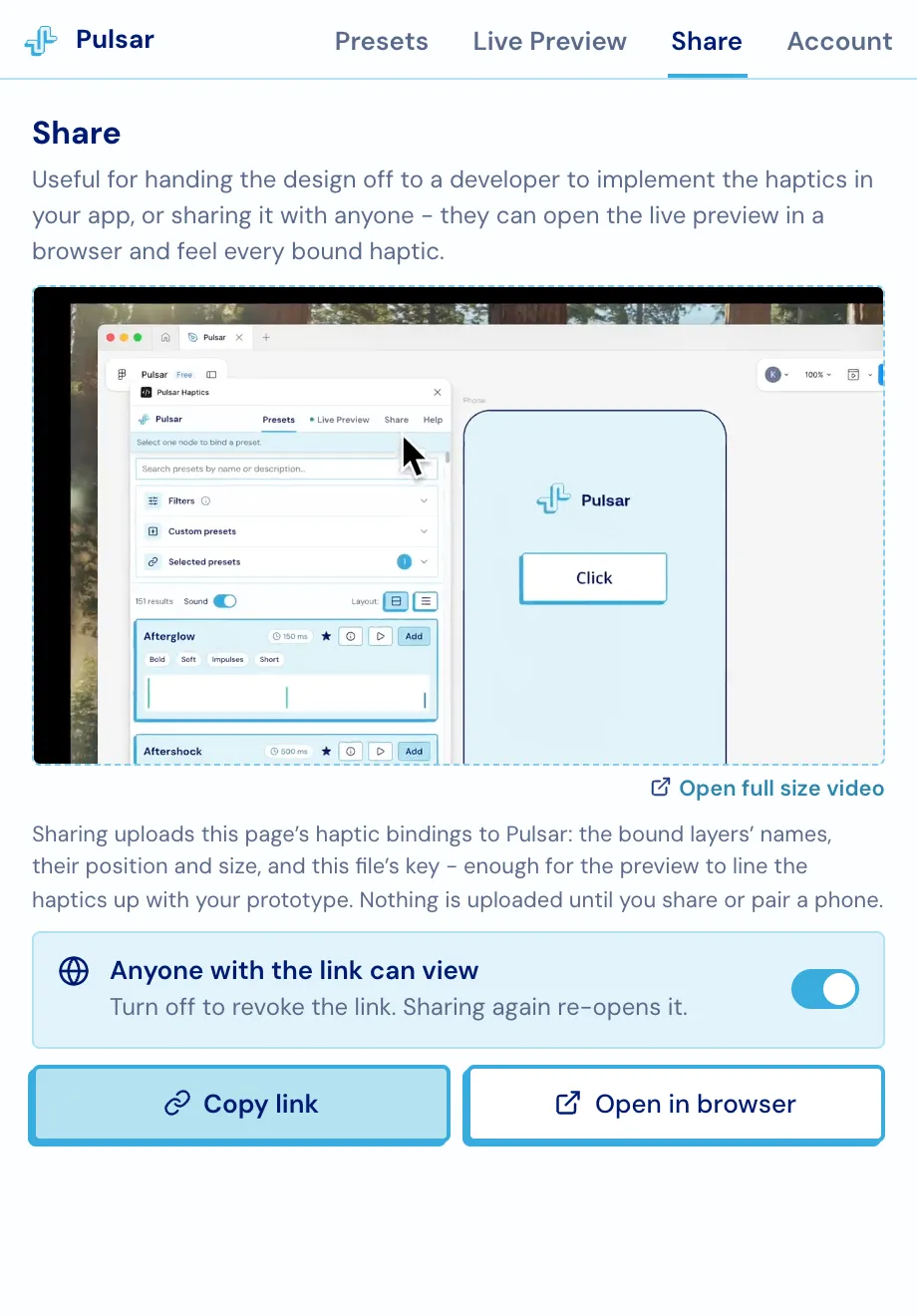
A haptic is hard to hand over in a spec. The Share tab turns the design into a link: the recipient opens your prototype in a browser, taps around, hears every bound haptic, and copies the code for it. No Figma access and no Pulsar account required.
What the recipient gets
Section titled “What the recipient gets”The shared page embeds your Figma prototype and overlays the elements that have haptics on them. Tapping one plays it. A side list of every haptic element lets them jump between screens, and opening a preset shows its waveform, its description and the same six SDK snippets - Swift, Android, Kotlin Multiplatform, React Native, Flutter and Web - that the plugin shows you.
Open the same link inside the Pulsar mobile app and the taps become real vibration rather than sound.
Controlling access
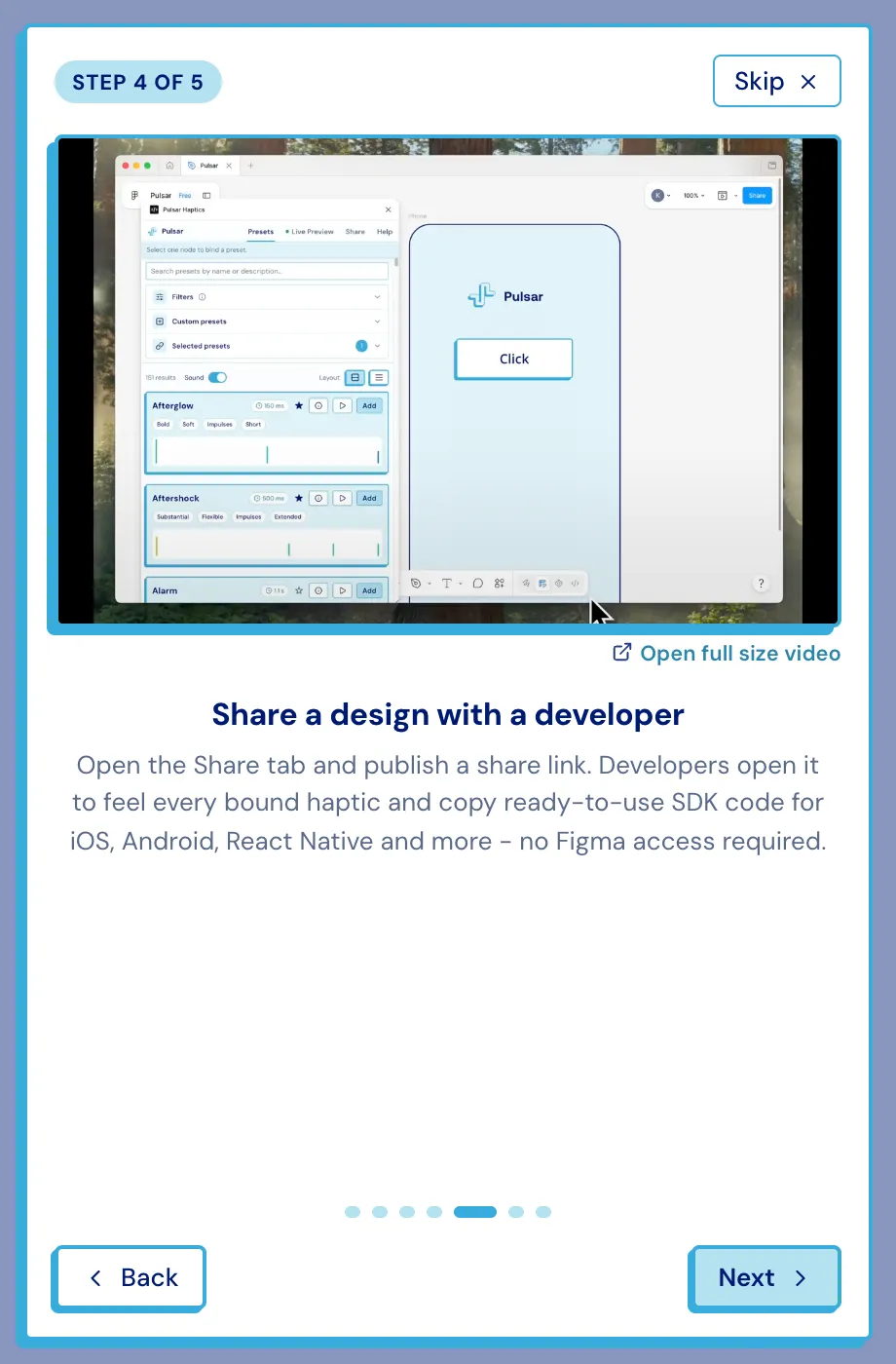
Section titled “Controlling access”The toggle above the buttons switches the link between public and private. Turning it off revokes the link without discarding it - sharing again re-opens access, and anyone holding the old URL stays locked out.
What gets uploaded
Section titled “What gets uploaded”Sharing (or pairing a phone) uploads the page’s bindings: the bound layers’ names, their position and size, and the file’s key - enough to line the haptics up with your prototype. Nothing is uploaded until you share or pair, and the prototype itself is served by Figma, not by Pulsar.
Handing it to an engineer
Section titled “Handing it to an engineer”Beyond the link, the bindings are readable straight out of the Figma file. Every bound layer carries its preset as shared plugin data, and every screen with haptics gets a Dev Mode annotation pointing at it - so a coding agent working from the file finds them without the plugin installed.
- Figma → code - the data contract, and how a preset name becomes an SDK call on each platform.
- Figma MCP - the same thing written up as an
agent workflow, with the
pulsar-figma-hapticsskill.